
How to Export Specific Widgets in Dashboard Excel Export
Bold BI® allows you to export specific widgets from a dashboard in Excel format. This feature is helpful when you want to analyze or share only selected widgets instead of exporting the entire dashboard.
This article explains how to select widgets for export and generate an Excel file with each widget placed on a separate sheet.
Step 1: Open the Export Settings
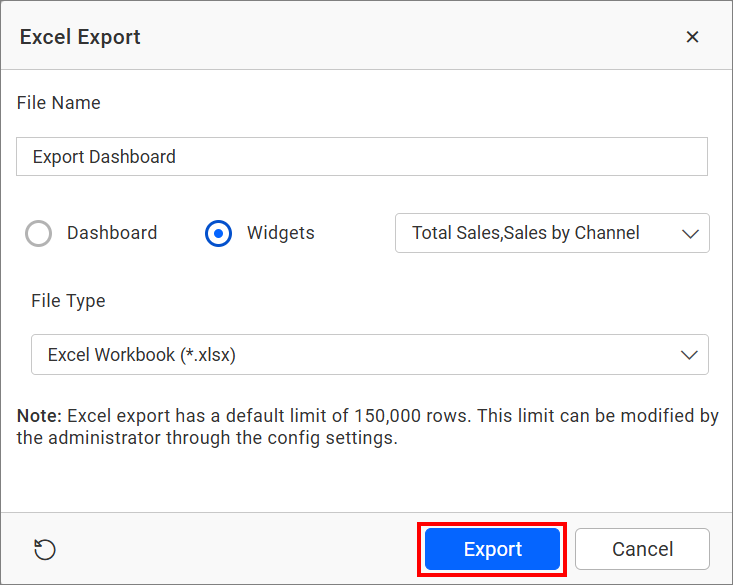
When exporting a dashboard, choose the Widgets option.
A dropdown list will appear on the right side of the export popup, allowing you to select the widgets you want to export.
Step 2: Choose Widgets to Export
Click the dropdown to view all available widgets in the dashboard (Filter Widgets are excluded).
Select the required widgets and click Export to export them into an Excel file.
Step 3: Export the Widgets
Click Export to generate the Excel file.
Each selected widget will appear on a separate sheet within the Excel workbook.
Step 4: Reset to Default
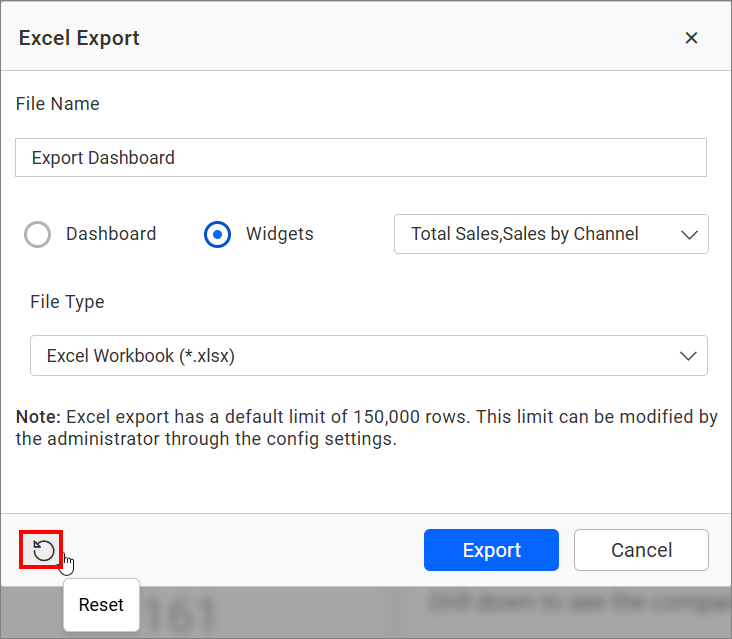
Click Reset to restore the default values in the export popup, including widget selection and export settings.
The exported Excel file will contain all selected widgets, with each widget placed on its own sheet for easier organization and analysis.
Additional References

