
How to Export Specific Widgets in Dashboard PDF Export
Bold BI® allows you to export specific widgets from a dashboard as a PDF file. This feature is useful when you want to save or share only selected visualizations instead of exporting the entire dashboard.
This article explains how to choose widgets, configure export options, and generate a customized PDF.
Step 1: Open the Export Settings
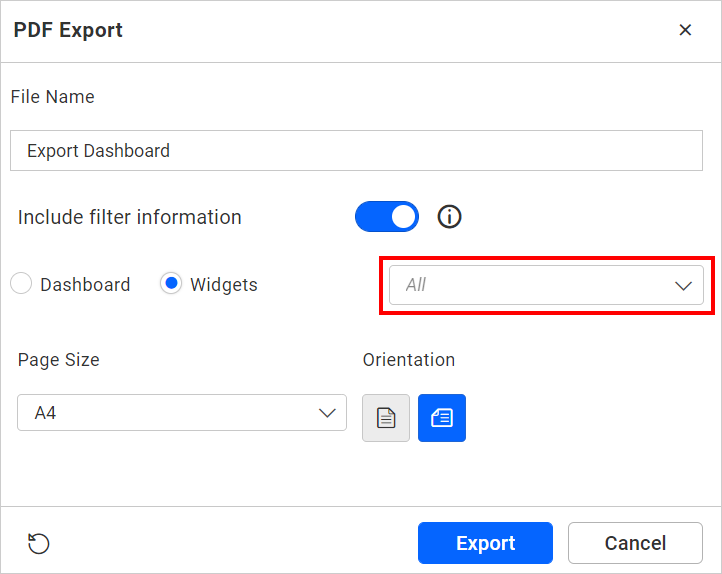
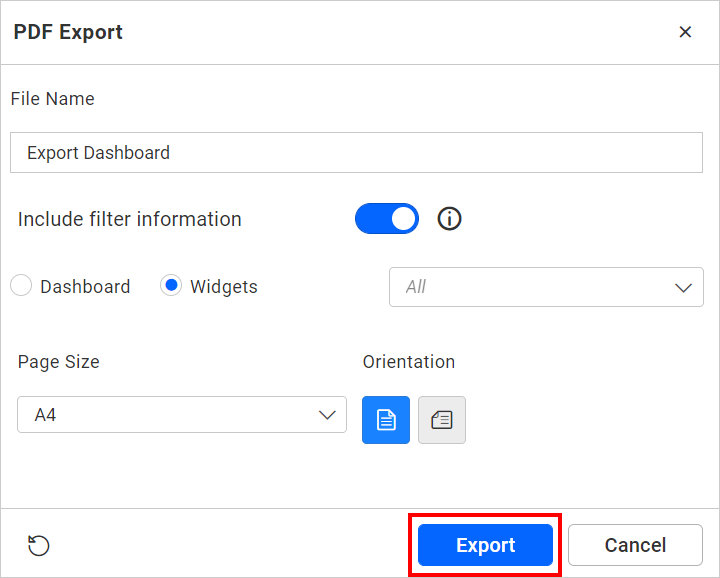
When exporting a dashboard, choose the Widget option.
This will display a dropdown list on the right side of the export popup where you can select individual widgets.
Step 2: Choose Widgets to Export
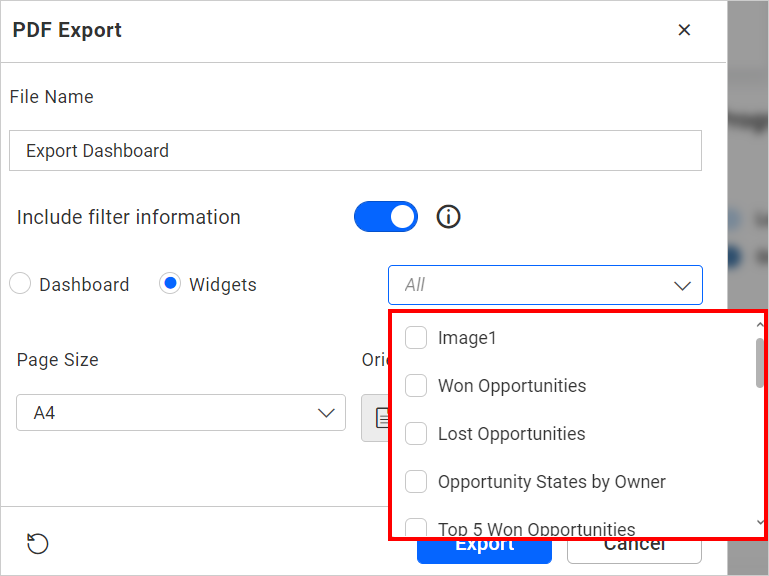
By clicking the dropdown, all widgets in the dashboard will be displayed (excluding Filter Widgets). Users can choose the widgets required and click on Export-to-export selected widgets in a PDF.
Step 3: Set PDF Page Size
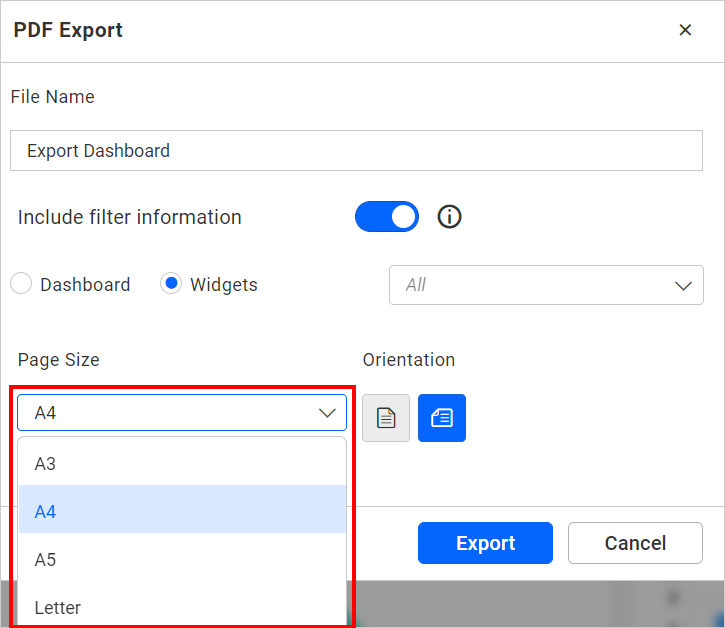
Choose the preferred Page Size for the exported PDF, such as A4, Letter, or other available formats.
Step 4: Select Page Orientation
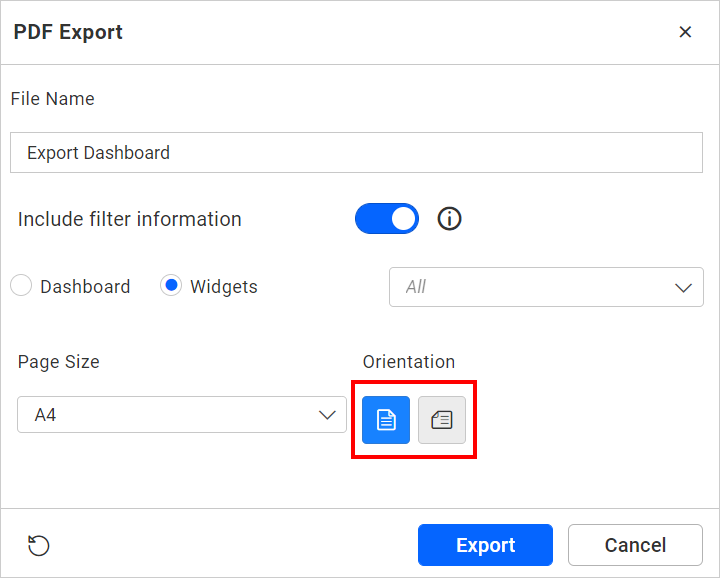
Select the orientation of the PDF pages:
-
Portrait
-
Landscape
Step 5: Export the Widgets
Click Export to generate the PDF.
Each selected widget will appear on its own page within the exported file.
Step 6: Reset to Default
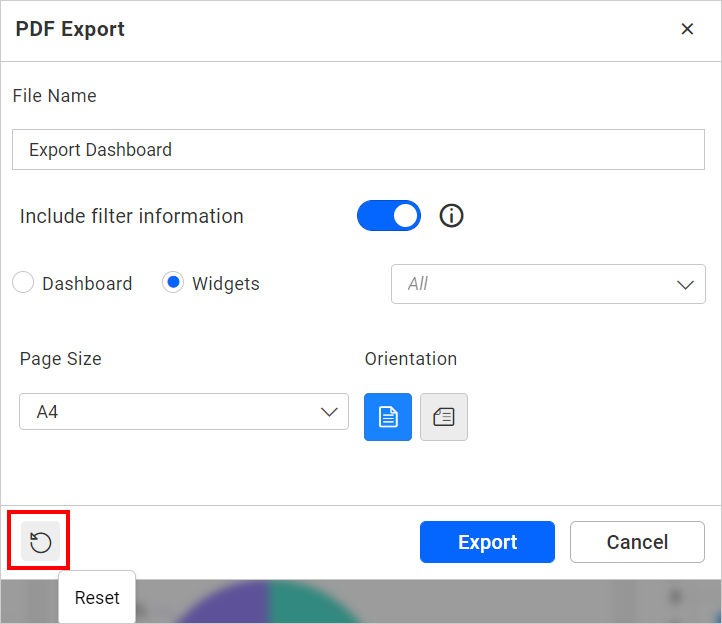
Click Reset if you want to restore the default values in the export popup, including page size, orientation, and widget selections.
A PDF file will be downloaded containing the user-selected widgets, each placed on a separate page for easy viewing and sharing.
Additional Reference

