
How to Enable Column Reordering in the Grid Widget
The Grid widget in Bold BI® includes a feature that allows users to reorder columns by dragging and dropping them into their preferred order. This helps improve data readability and gives end users more control over how they view information.
This article explains how to enable and use the Allow Column Reorder option.
Column Reordering
Column reordering allows you to drag a column header and drop it in a new position within the Grid widget.
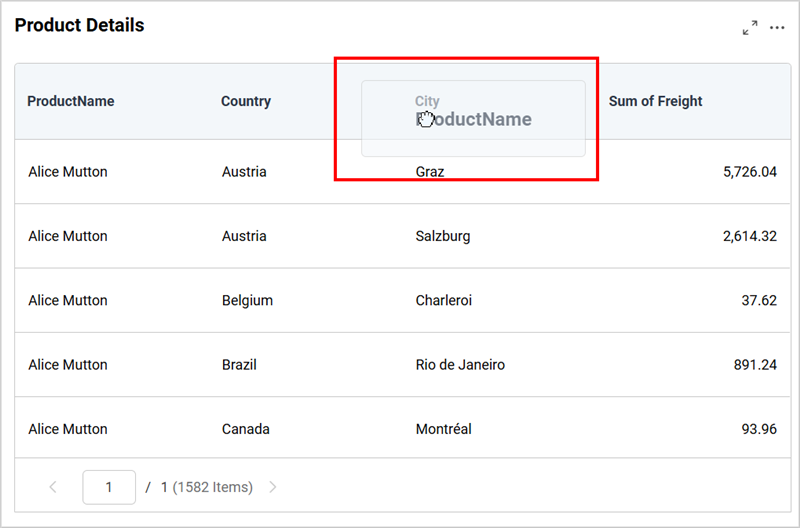
For example, the ProductName column can be moved beside another column simply by dragging it.
Prerequisite
Column reordering works only when Allow Paging is enabled.
Steps to Enable Column Reordering
Step 1: Select the Grid Widget
Click the Grid widget on your dashboard to open the Properties panel.
Step 2: Enable “Allow Column Reorder”
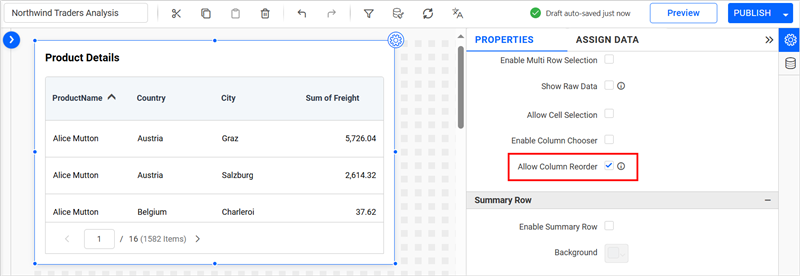
In the Properties panel, under Basic Settings, turn on the Allow Column Reorder option.
How to Reorder Columns
Once enabled, you can reorder columns directly in the Grid widget:
-
Hover over the column header you want to move.
-
Drag the header to the desired position.
-
Drop it when you see the highlighted placeholder.
Below is an example of dragging the ProductName column:
Additional References

